Vmake AI Review: A Simple Video Quality Enhancer for Better Videos

Our guides are based on hands-on testing and verified sources. Each article is reviewed for accuracy and updated regularly to ensure current, reliable information.Read our editorial policy.
Ever tried to save a video that looked like mush? Ever wondered if any of those AI video tools actually solve the problem? I spent a few weeks with Vmake’s upscaler, watermark remover, and other AI gadgets to find out.
Spoiler: It’s faster and easier than most, but there are caveats.
#1 Getting Started
You don’t need to install anything to use Vmake. It runs inside your browser. You drag and drop your files and pick the quality you want. The upscaler accepts MP4, MOV, and a few other formats. If your footage is in MOV and you need it as MP4 first, a free MOV-to-MP4 converter handles that entirely in the browser before you upload.
File size is capped at about 200 MB, and you can upload three to five videos at a time, depending on which page you read. That inconsistency itself is an early warning sign. It made me double-check help docs. Onboarding is otherwise painless. You log in, see a clean dashboard, and start editing in minutes.
You choose the resolution next: 1080p, 2K, or 4K. There’s no 8K yet. The tool then starts processing. I found that a 60-second clip takes about two minutes to upscale. Shorter clips finish in seconds. You can preview the result before downloading. It all happens in the same tab — no switching between apps.
#2 Upscaling & Enhancement
Once your video uploads, Vmake’s video enhancer automatically adjusts brightness, contrast, saturation, and sharpness. You don’t see dials or sliders. The AI just does it.
That’s freeing if you hate fiddling with settings. But it also means you can’t correct over-sharpening or color shifts if they appear. The system uses multi-frame analysis to maintain motion consistency, so moving subjects don’t ghost. It also supports vertical and square videos and keeps your original audio untouched.
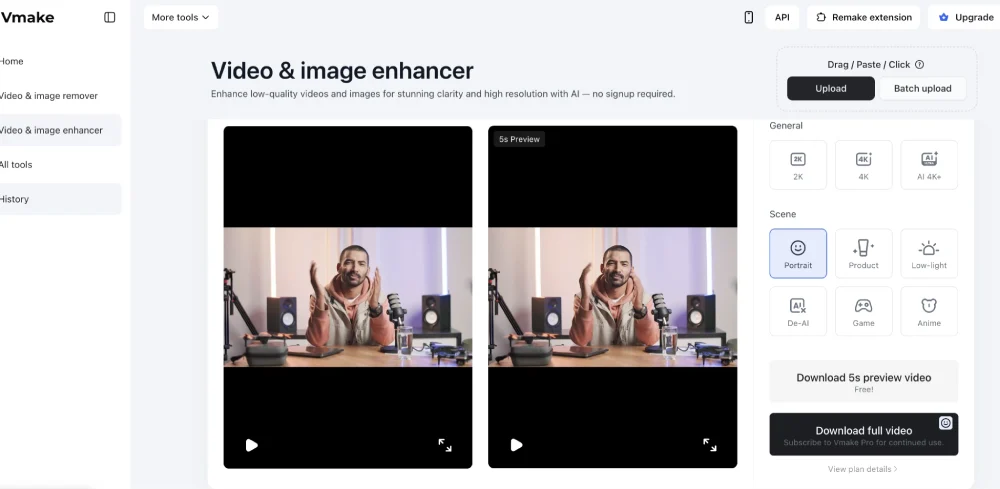
In my tests, the jump in quality from 720p to 1080p was obvious. Faces popped. Text became readable. Going from 1080p to 4K added more texture and detail. I used it on an old product demo shot on a phone. After upscaling, the footage looked crisp enough for a paid ad. A 4-minute 4K export costs several credits, though. I hit daily limits quickly. More on pricing later.
There’s no 8K or HDR output. The marketing hints at “AI 4K+,” but the actual options stop at 4K. Competing desktop tools such as Topaz Video AI and Aiseesoft offer 8K upscaling. That’s a miss for high-end post-production.
#3 Watermark Removal
Vmake’s video watermark remover is the real hero. You can upload up to 30 videos at once. Each file appears in its own card. You click “remove,” and the AI automatically strips watermarks. There’s no manual masking unless you want to fine-tune. You can preview the first 5 seconds for free, then download the full HD version.
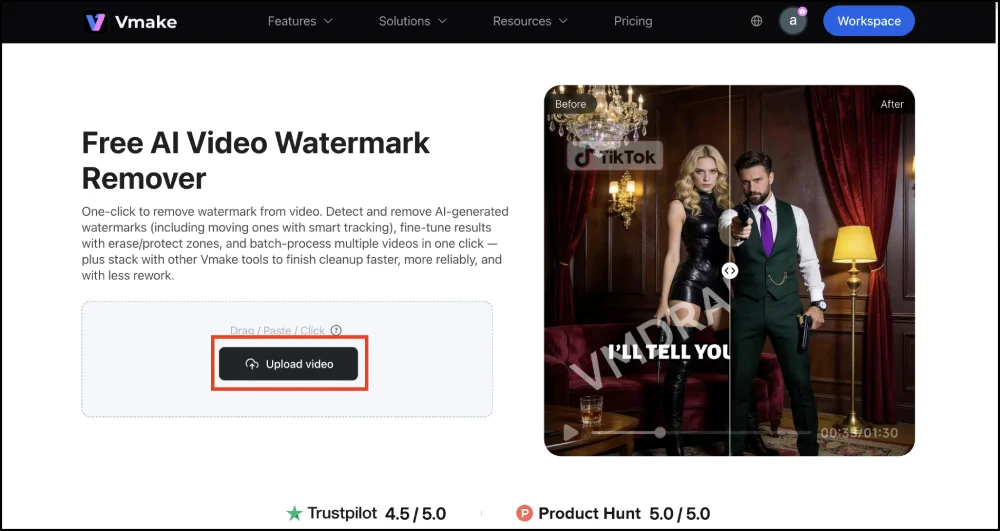
The tool handles static logos, tiled overlays, drifting watermarks, and even moving marks. It tracks motion across frames and fills the background naturally. I tried it on clips from different platforms — TikTok, YouTube, and a screen recording with a floating logo.
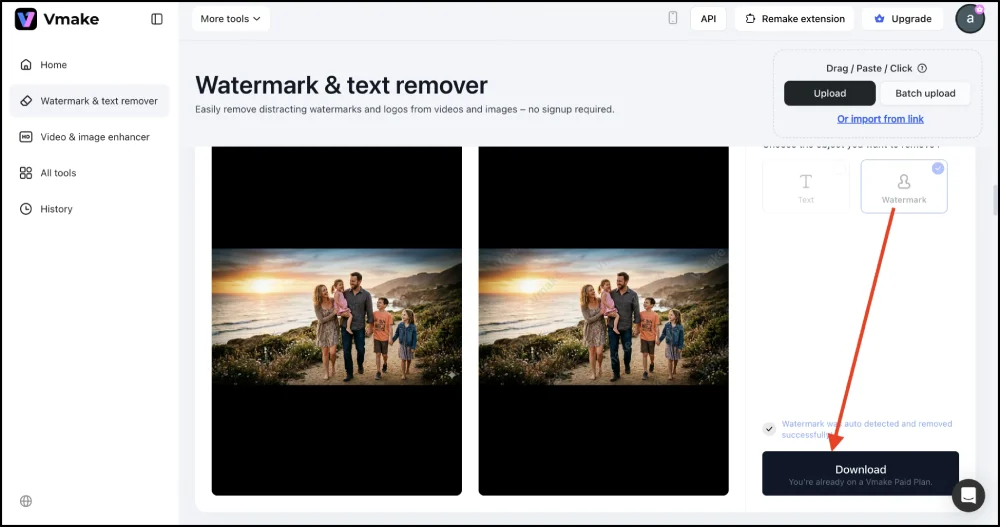
Vmake removed all of them cleanly. That said, using this feature on content you don’t own could violate copyright. It’s meant for cleaning up your own assets. Remove watermarks from AI-generated or licensed material, not from random internet clips.
Another highlight: the tool can delete unwanted objects, subtitles, or entire people. You define erase zones and protect zones if the automatic removal misses something. It’s surprisingly robust. I removed a stray hand and a distracting sticker from a product video without obvious artifacts.
#4 AI Video Generator & Extras
Vmake is more than just an upscaler. It also offers an AI video generator, templates, avatars, voice-over synthesis, and auto-captions. You can start a new clip from text, an image, or an existing video. For text-to-video, you type a prompt describing the scene: “close up of a skincare bottle on a marble surface with soft morning light,” for example.
The AI builds a video with motion, backgrounds, and hook lines. Image-to-video turns your product photo into an animated video with panning and zooming. Video-to-video reworks existing footage. You can swap styles, improve quality, and remove watermarks in one flow.
The generator supports multiple models like Kling 3.0, Seedance 2.0, and Veo 3.1. Each produces a different look — some more realistic, others more stylized.
You also pick visual styles such as cinematic or realistic. There are effect packages to add motion and energy, and you can adjust ratios and durations. Maximum length is 15 seconds. That may be plenty for ads and hooks, but won’t handle long explainer videos.
I generated three test videos: a skincare demo, an unboxing, and a talking-head review. The skincare clip looked polished and natural. The unboxing clip had good pacing but needed some editing. The talking-head review felt stiff at first.
After I rewrote the prompt in a more conversational tone, the output improved. Lesson: The quality of text-to-video depends heavily on how specific your prompt is. Vague prompts produce generic results. If you’ve ever compared automatic subtitle generator tools, you’ll find Vmake’s built-in caption feature holds up reasonably well against standalone options — though dedicated tools give more formatting control.
The biggest advantage of the generator is the integrated workspace. You can create, enhance, caption, remove watermarks, and export without switching tabs. This saves time when you’re producing multiple clips a week.
#5 Vmake AI Plans, Pricing & Credits
Let’s talk money. Vmake’s free tier gives you 350 credits when you sign up and 20 credits per day afterward. Those exports will have watermarks, and the max resolution is 720p. The Plus plan grants 1,000 credits monthly with 10 daily uses of core tools like the upscaler and watermark remover. Video export quality is limited to 1080p on this plan.
The Pro plan gives you 4,500 credits and lets you use core tools 50 times per day. It unlocks 2K and 4K exports. It also gives full access to premium AI models and commercial rights.
4K outputs look good, but they chew through credits quickly. Credits do not roll over. When you hit your limit, you must wait until the next cycle. Check Vmake’s pricing page for current plan costs, as these change periodically.
For context, a single upscaling job might cost anywhere from a few credits for a short 720p clip to dozens for a 4K export. Auto-caption or watermark removal also costs credits.
If you’re processing more than ten videos a day, the Pro plan is the only realistic option. But heavy users will still hit the 50-file daily cap on Pro. That’s less than what some professional editors handle.
The free tier lacks the watermark remover and video enhancer entirely. So free users are stuck with watermarked, lower-quality exports unless they upgrade.
#6 Pros of Vmake AI
Here’s what I liked most about Vmake:
- Speed and simplicity: Upload, choose resolution, download. The interface is so intuitive that even non-tech people can use it. Steps are clearly labeled, and the workspace feels uncluttered.
- Browser-based: No heavy software downloads. Works on any device with Chrome or a similar browser.
- Clean-up features: The watermark remover is excellent. It handles motion and complex overlays. Object and subtitle removal are also handy.
- Integrated workflow: The ability to generate, enhance, remove, caption, and export inside one tool means you don’t juggle six apps. For marketing teams producing 15 to 20 clips a week, that saves hours.
- Template and model variety: The generator offers multiple AI models and styles. You can experiment with cinematic or realistic aesthetics. It’s more flexible than other one-size-fits-all tools.
- Useful for UGC ads: Short-form content is its sweet spot. It’s quick to create 15-second product demos or hooks. The AI Hook generator writes an opening line for you. Combined with auto captions and upscaling, you can produce polished ads quickly.
#7 Cons of Vmake AI
No tool is perfect. Here’s what bugged me:
- Credit caps: The subscription model uses credits for everything. Free and Plus plans run out fast. Even the Pro plan’s 4,500 credits can disappear after a few 4K exports. Daily tool usage is capped: 10 files/day on Plus and 50 on Pro. Heavy users could hit a wall mid-project.
- Lack of 8K and long-form support: The maximum export is 4K. If you need 8K or more than 15 seconds of generated footage, look elsewhere. For long demos, you’ll have to stitch multiple clips yourself — a free online video cutter can help you trim and join them without any software.
- Not a replacement for pro editing: Vmake is great for quick wins. But it won’t replace Adobe Premiere or DaVinci Resolve for precise color grading, frame-level editing, or cinematic pacing.
#8 Who Should Use Vmake AI?
Based on my testing and research, Vmake fits:
- Small businesses and e-commerce brands: You can make UGC-style ads in minutes and refresh them often. Small teams get value by quickly turning product photos into finished ads.
- Freelancers and content creators: Daily posters need volume without burnout. Vmake’s automation and AI Hook generator saves time.
- Social media managers: Handling multiple client accounts means producing short videos fast. The integrated workspace and quick exports help meet tight deadlines.
- Agencies: For agencies producing fifteen to twenty clips per week, combining generation, enhancement, cleanup, and captions in one tool reduces overhead. The Pro plan’s 4K export and high credit limit make it viable for client deliverables.
It’s less ideal for:
- Long-form or cinematic creators: You’ll hit the 15-second ceiling and 4K max quickly.
- Hardcore video editors: Lack of manual control and granular adjustment means you’ll still need a full editor for professional projects.
- High-volume teams: If you process hundreds of clips daily, the credit caps and daily limits will get in your way. A desktop solution with unlimited export might be cheaper in the long term.
#9 Final Verdict
So, is Vmake the best video quality enhancer in 2026? For many marketers, it’s pretty close. It makes short clips look polished. It cleans up watermarks effortlessly. It bundles generation, enhancement, captioning, and export into a single browser tab. And it’s priced accessibly for small teams.
That said, it isn’t magic. You still need to feed it good prompts. You’ll need to watch your credit balance like a hawk. You’ll hit limitations if you want 8K or long-form content.
My advice? Use the free tier to try it. Upscale a few clips, remove a watermark or two, and see if the results fit your brand. Once you download your exports, run them through a free MP4 compressor before uploading to social to shave file size without sacrificing quality.
If you need quick UGC ads or social videos without learning editing software, upgrade to Plus or Pro and see how it scales. For everything else, keep your existing editor.
About Himanshu Tyagi
At CodeItBro, I help professionals, marketers, and aspiring technologists bridge the gap between curiosity and confidence in coding and automation. With a dedication to clarity and impact, my work focuses on turning beginner hesitation into actionable results. From clear tutorials on Python and AI tools to practical insights for working with modern stacks, I publish genuine learning experiences that empower you to deploy real solutions—without getting lost in jargon. Join me as we build a smarter tech-muscle together.