How to Use Claude Code For Vibe Coding

Our guides are based on hands-on testing and verified sources. Each article is reviewed for accuracy and updated regularly to ensure current, reliable information.Read our editorial policy.
Claude Code sounds like a developer tool. It is. But that does not mean only developers can use it.
If you can describe what you want in plain English, you can already do a lot with it. You can build simple websites, create dashboards, organize project files, and prepare clearer briefs for your technical team without writing code yourself.
That is the real shift. You stop thinking like a coder and start thinking like a project owner.
In this guide, I will show you how to use Claude Code as a non-coder, how to set it up, how to prompt it well, how connectors, plugins, and skills fit in, and where it still falls short.
What is Claude Code?
Claude Code is a command-line interface that runs on a user’s computer. It connects to a Claude instance hosted on Anthropic’s servers via API, and allows Claude to run commands, read/write files, and interact with the user.
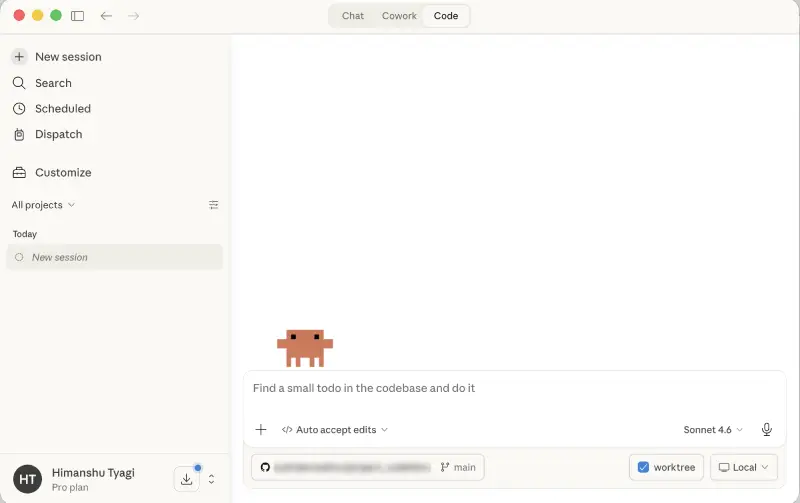
If you are using the free version of Claude, then you will not be able to use Claude Code. It is only available to Pro and Max plan users
Claude has a few different ways to work.
- Chat is the standard chatbot experience.
- Projects help you organize separate workspaces.
- Cowork is built for collaborative workflows with shared context.
- Claude Code is the part designed for working directly with files, folders, tools, and code.
Claude Code does not just answer questions. It can read a folder, create files, edit files, run commands, and help assemble a working project. Claude Code is just one option in a growing field of AI-powered coding assistants worth knowing about.
For a non-developer, that means you can describe a landing page, portfolio, dashboard, or internal tool, and Claude can build the first version for you.
You are not replacing a skilled engineer. You are speeding up the first draft, the prototype, and the handoff.
Latest developments: Anthropic recently announced Claude Code Channels, a way to connect Claude Code to Discord or Telegram, letting developers message it directly while on the go and instruct it to write code asynchronously. VentureBeat
In February 2026, Anthropic also unveiled Claude Code Security — a tool that uses reasoning-based scanning to identify zero-day vulnerabilities in codebases.
Why Non-Coders Should Care
Most people hear “code” and stop there.
That is a mistake.
You do not need to understand every line Claude writes to get value from it. You only need to know the outcome you want and how to review that outcome properly.
Here are a few strong use cases for non-coders:
- Build a landing page from a screenshot or rough brief
- Turn notes into a simple dashboard or internal tool
- Create a prototype before sending it to a developer
- Test layout ideas without waiting on a team
- Organize files and content for a web project faster
- Create clearer briefs for designers and engineers
Think of Claude Code like a junior builder who moves fast and never gets tired. Your job is to give direction, review the output, and keep narrowing the gap between “not quite right” and “ready to use.”
What You Need Before You Start Vibe Coding With Claude
You do not need a computer science background. You need a few basic pieces in place:
- A Claude account with access to Claude Code
- A folder on your computer for the project
- A GitHub account, if you want to store or share code
- VS Code, if you want a smoother workflow
That is it.
The setup looks more technical than it really is. Once the basic pieces are connected, most of the work happens through prompts.
How to Set Up Claude Code Without Coding
1. Install Claude and Open the Code Workspace
Start by installing Claude and opening the Code workspace. Claude will usually ask you to choose a folder from your computer. This folder becomes the working area for your project.
Create a simple folder first. Name it something clear, like my-website-project.
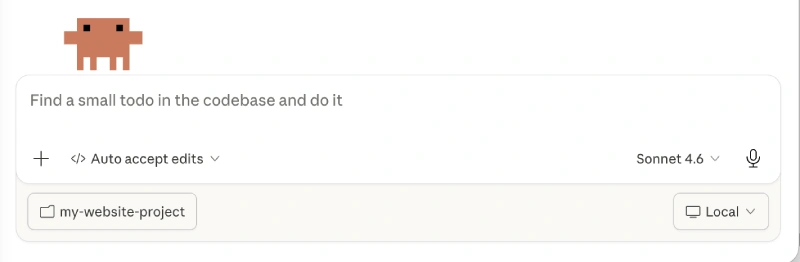
Inside that folder, you can later add files such as notes, brand guidelines, sample copy, screenshots, or anything else you want Claude to reference.
2. Connect GitHub and Other Tools
GitHub is one of the most useful connections for Claude Code.
Once connected, Claude can use your repository as a working context, which makes it much more useful for real project tasks.
More broadly, Claude also supports connectors and MCP-based tool access, which means it can work with external services, files, APIs, and other project tools when those integrations are available.
For non-coders, this is the main benefit: Claude works better when it can see your actual project context instead of relying only on your prompt.
3. Start With One Simple Prompt
Do not begin with a huge product idea.
Start small.
Ask Claude to create a basic landing page, portfolio page, or internal dashboard. The first goal is not perfection. The first goal is to see the workflow.
A simple prompt structure works well:
- What you want built
- Who it is for
- What success looks like
- Any example or screenshot
- Any specific sections you want included
For example:
Build a simple landing page for my SEO and web tools brand. I want a clean hero section, three service blocks, a tools section, testimonials, and a contact CTA. Use simple copy, modern spacing, and a trustworthy look.
That is enough to start.
When you give the above prompt to Claude, it first analyze and then start writing the code. While it is planning and writing code, it might ask before running commands
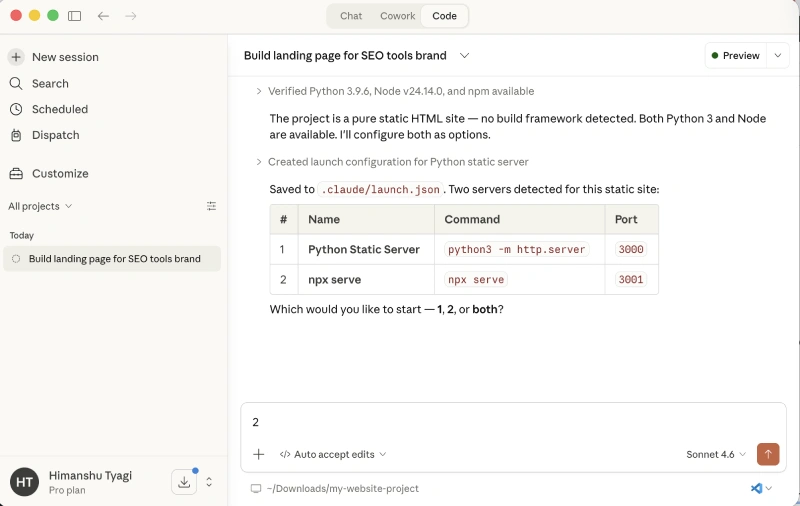
In my case, it generated a static website, and I was awestruck with the results. What before took weeks and thousands of Dollars to ship can now be done in a matter of minutes.
See it for yourself!
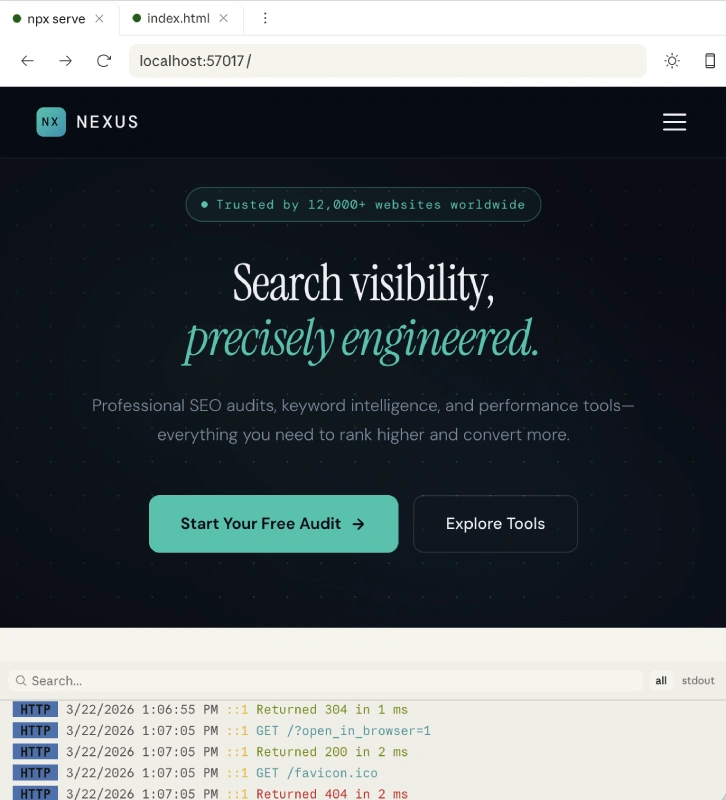
The best part is that it automatically took care of:
- Mobile responsive design
- Web copy
- CRO best practices: CTAs
- Micro animations on the page
Claude Plugins, Connectors, and Skills Explained
This is where many beginners get confused.
You may hear people use the word plugins for everything. But Claude now has a few different layers, and each one does a different job.
A. Connectors
Connectors let Claude connect to apps and services you already use.
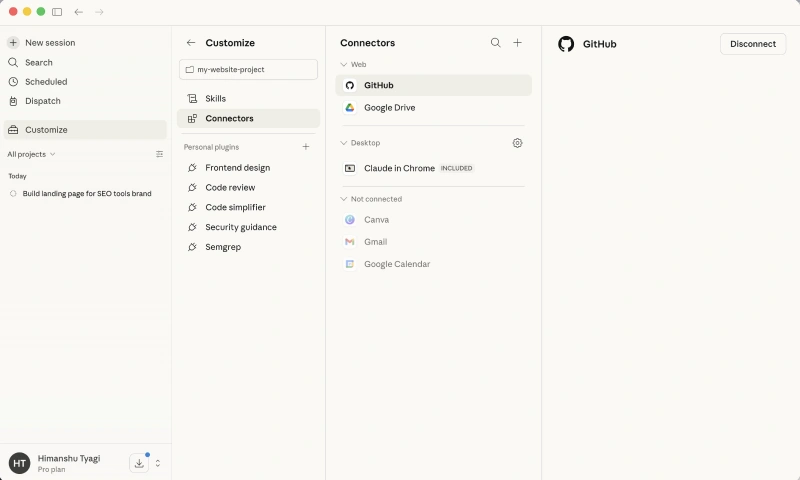
That can include tools for code, files, project management, communication, or productivity. For a non-coder, this matters because Claude can pull in context from connected services and work with your real project data instead of guessing.
A simple example is GitHub. Once connected, Claude can better understand your repository and use that context when helping with development tasks.
B. Plugins
Inside Claude Code, plugins are the broader extension system.
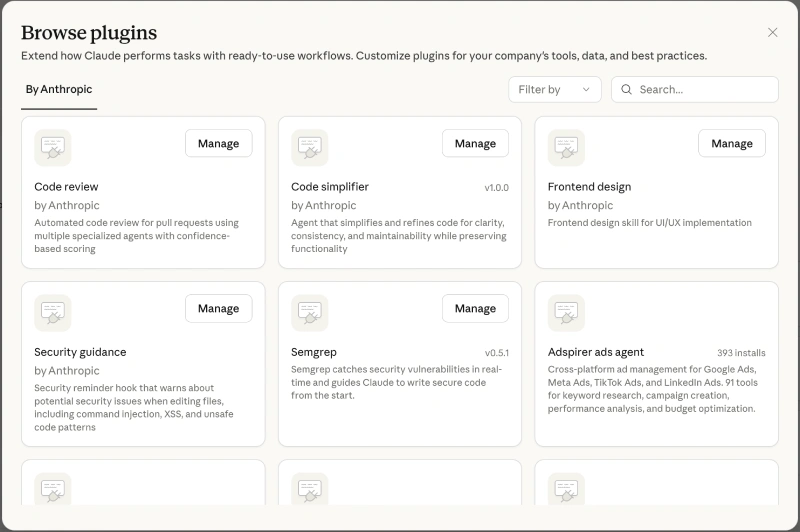
Think of a plugin as a packaged upgrade for Claude Code. A plugin can add extra capabilities such as reusable skills, specialized agents, hooks, MCP-based tool connections, or code intelligence support.
That means plugins are not just tiny add-ons. They can shape how Claude works inside your project.
C. Skills
Skills are one of the most useful features for non-coders.
A skill is a reusable set of instructions that teaches Claude how to handle a task in a consistent way. Instead of re-explaining the same workflow every time, you can save that workflow as a skill and let Claude reuse it when needed.
This is powerful because it turns your repeated prompts into repeatable systems.
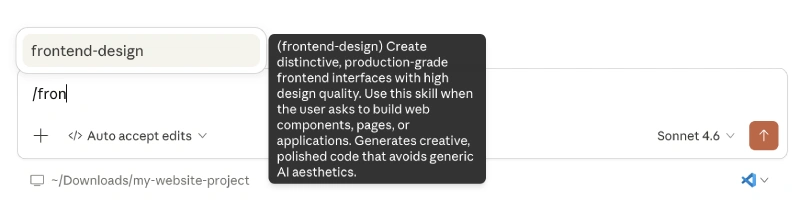
You can use skills for things like:
- Writing homepage copy in your brand voice
- Reviewing a landing page before launch
- Generating a project handoff for a developer
- Creating SEO-friendly page structures
- Turning rough notes into cleaner documentation
In simple terms:
- Connectors connect Claude to outside apps and data
- Plugins extend Claude Code with bigger packaged capabilities
- Skills teach Claude how to repeat a task your way
Why VS Code Makes Claude Code Much Better
You can use Claude Code inside the Claude app. That works for testing.
But if you plan to use it regularly, VS Code usually gives you a better experience.
Here is why:
- Easier file browsing
- Smoother project structure
- Better workflow for ongoing edits
- Fewer interruptions in many setups
- Easier handoff to developers later
You do not need to code in VS Code. You only need it as the workspace where Claude can work more efficiently.
Basic VS Code Setup
Install VS Code. Then install the Claude extension if it is available in your environment.
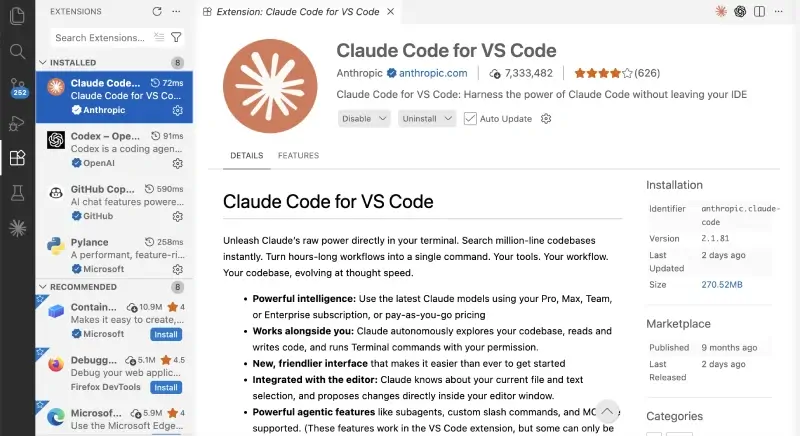
After signing in, open your project folder in VS Code and start a Claude Code session there.
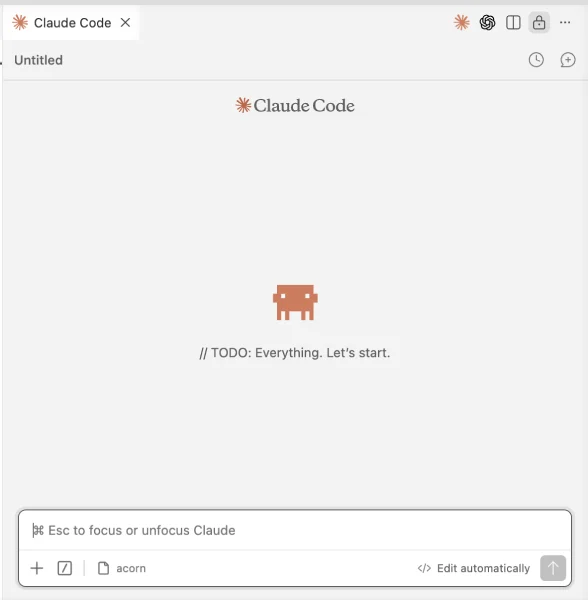
This setup often feels much more practical than staying inside the desktop app alone.
If you are also evaluating other AI coding tools alongside Claude Code, our GitHub Copilot review covers how it compares for real developer workflows.
The Best Way to Prompt Claude Code
This is where most beginners waste time.
They try to tell Claude how to code instead of telling it what outcome they want.
That slows everything down.
You will get better results when you brief Claude the way you would brief a designer or junior developer. For a deeper dive on prompting across tools, see our guide on vibe coding prompting best practices.
1. Start With the End Result
Do not say:
Create an HTML file, then add CSS, then make it responsive, then use cards, then create a footer.
Say:
Build a clean homepage for a cybersecurity tools site. I want a bold hero, trust signals, category blocks, a featured tools section, and a simple footer. Keep it modern and easy to scan on mobile.
Focus on the finished output. Let Claude decide the lower-level steps.
2. Use Screenshots Whenever Possible
This is one of the fastest shortcuts.
If you like the layout of another website, take a screenshot and upload it. Then tell Claude what you want changed.
For example:
Use this layout style as inspiration, but make it fit my AI tools brand. Keep the structure simple and remove anything that feels too corporate.
That is much faster than describing spacing, hierarchy, and layout with long text.
Screenshots also work well for fixing issues. If something breaks on mobile or a section looks odd, take a screenshot and say:
This section overlaps on mobile. Fix it and keep spacing consistent with the rest of the page.
That is clearer, faster, and more accurate than over-explaining the problem in text.
3. Point Claude to Your Files
If your folder already contains files like these, tell Claude to read them first:
- about-brand.md
- tone-of-voice.md
- homepage-copy.md
- Screenshots
- Logo files
For example:
Review the files in this folder before you start. Use my brand tone, product language, and examples when writing the copy and building the structure.
That gives Claude better context and reduces generic output.
4. Work in Small Sprints
Do not ask for 12 features in a single prompt.
Start with one deliverable.
A good sequence looks like this:
- Build homepage
- Refine homepage
- Add contact page
- Add blog layout
- Improve mobile styling
- Polish copy and CTA sections
This works better because each round is easier to review.
How to Use Claude Skills as a Non-Coder
If you use Claude Code often, skills can save you a lot of time.
Without skills, you keep rewriting the same instructions. You explain your tone again. You explain your layout preferences again. You explain what “good enough” means again.
With skills, you package that once and reuse it.
What a Skill Can Help You Do
A skill can act like a saved playbook for a repeated task.
For example, you could create a skill that tells Claude how to:
- Build a landing page draft from a screenshot
- Turn bullet points into a proper product brief
- Review a page for mobile layout issues
- Write copy in your house style
- Create a clean handoff document for a developer
This is useful when you want Claude to behave consistently across projects.
Give Claude a Memory File
One of the biggest beginner frustrations is repetition.
You return to a project a few days later, and Claude does not seem to remember the design decisions, page structure, or tone you settled on earlier.
The fix is simple.
Ask Claude to create a CLAUDE.md file in the root of the project and store key decisions there.
That file can include:
- Folder structure
- Purpose of each file
- Design choices
- Color preferences
- Font choices
- Existing pages
- Copy style
- Interaction patterns
A simple prompt:
Create a CLAUDE.md file in the root of this project and document the current structure, design choices, existing pages, and my preferences so future sessions can continue consistently.
This turns the project into a more stable working environment.
When to Use a Plugin Instead of a Skill
A skill is great when you want Claude to follow a repeatable instruction set.
A plugin makes more sense when you want to extend Claude Code itself with extra capabilities.
For example, a plugin can bundle things like:
- Skills for repeated workflows
- Specialized agents for focused tasks
- Hooks that trigger actions automatically
- MCP-based connections to outside tools
- Code intelligence support for certain languages
If you are a beginner, start with skills first.
If you work with a developer or technical teammate, plugins become more useful because they can package more advanced workflows into something reusable across projects.
Where Claude Code Still Falls Short
1. Usage Can Add Up Fast
Code-focused sessions can consume more usage than normal chat. If you use Claude Code heavily every day, you may notice plan limits sooner than expected.
2. You Still Need to Review Outcomes Carefully
If you do not read code, you are trusting Claude’s implementation. That means your review process should focus on what you can judge directly:
- Does the page load?
- Does it look right on desktop and mobile?
- Do buttons work?
- Do links go to the right place?
- Does the copy sound on-brand?
Your eyes become the review layer.
3. It Can Get Stuck in Loops
Sometimes Claude tries one fix, creates another issue, then keeps circling.
When that happens, stop the cycle.
Use a prompt like this:
Stop and explain what is going wrong. Then give me two different ways to fix it.
That usually resets the workflow and gives you clearer options.
4. Default Design Choices Can Feel Generic
Claude can build something functional quickly. That does not mean it will look distinctive by default.
If you want stronger design, give it better references. Upload screenshots. Mention spacing, mood, typography, and page flow. Specific direction helps a lot.
A Simple 30-Minute Beginner Workflow
Minutes 0 to 5
Install Claude, open Claude Code, and create a project folder.
Minutes 5 to 10
Add useful context files to the folder. Include a short brand note, a writing sample, and any screenshots you want Claude to follow.
Minutes 10 to 15
Ask Claude to review the folder first, then build one simple deliverable such as a homepage.
Minutes 15 to 20
Review the output. Refresh often. Ask for direct changes like headline size, button placement, section order, or color tweaks.
Minutes 20 to 30
Ask Claude to create a CLAUDE.md memory file and refine the project so the next session starts with better context.
That is enough for a real first win.
Final Thoughts
Claude Code is not only for developers.
If you can explain what you want clearly, review a result with common sense, and work in small steps, you can get real value from it without learning to code.
The smartest way to use it is not to pretend you are an engineer. It is to act like a good project lead. Give clear goals. Share examples. Work one step at a time. Review everything that matters.
Frequently Asked Questions (FAQs)
Can I use Claude Code without knowing how to code?
Yes. You can use Claude Code as a non-coder if you focus on describing outcomes clearly, sharing examples, and reviewing the final result carefully instead of trying to write code yourself.
Do I need GitHub to use Claude Code?
Not always for basic experiments, but GitHub is useful if you want to store project code online, manage versions, or share the project with a developer later.
What is the difference between Claude connectors, plugins, and skills?
Connectors link Claude to outside apps and services. Plugins extend Claude Code with larger packaged capabilities. Skills are reusable instructions that help Claude perform repeat tasks more consistently.
Is VS Code required for Claude Code?
No, but it usually gives you a better workflow. Many users find it easier to manage folders, review files, and keep projects organized in VS Code.
What should I put in a CLAUDE.md file?
Use it to store project memory, such as folder structure, page list, design choices, writing style, preferred colors, fonts, and any important decisions you want future sessions to remember.
About Himanshu Tyagi
At CodeItBro, I help professionals, marketers, and aspiring technologists bridge the gap between curiosity and confidence in coding and automation. With a dedication to clarity and impact, my work focuses on turning beginner hesitation into actionable results. From clear tutorials on Python and AI tools to practical insights for working with modern stacks, I publish genuine learning experiences that empower you to deploy real solutions—without getting lost in jargon. Join me as we build a smarter tech-muscle together.