What Is an XML Formatter? Benefits, Examples and Best Tools

Our guides are based on hands-on testing and verified sources. Each article is reviewed for accuracy and updated regularly to ensure current, reliable information.Read our editorial policy.
When you open an API response or an old configuration file, and the XML is all on one line, it feels like staring at a block of noise. There are angle brackets everywhere, and no clue where one element ends and another begins.
This is where an XML formatter becomes invaluable. Instead of manually adding spaces and new lines, a formatter parses your document, understands its hierarchy, and outputs a cleanly indented, human-readable version.
An XML formatter automatically adds proper indentation, line breaks, and spacing so that you can spot errors and understand the structure at a glance. In other words, it’s a beautifier for Extensible Markup Language (XML).
Why Does XML Formatting Matter?
XML is a plain-text, self-describing format designed for storing and exchanging data across platforms.
Its flexibility allows you to invent your own tags and nest them to represent complex data structures. This makes it powerful, but it also means that poorly formatted XML can become unreadable.
Long, single-line XML is difficult to debug, and small mistakes, such as a missing closing tag, can break an entire file. Proper formatting improves readability, aids error detection, and makes collaboration easier.
XML is human-readable, and even a damaged file can often be recovered in a simple text editor. Its platform-independent, Unicode-friendly nature simplifies data sharing across systems, and formatting helps retain these benefits by keeping the structure clear.
How XML Formatters Work
At its core, an XML formatter is a parser paired with an output generator. It reads the XML string into a tree structure, keeping track of nesting levels and attributes.
It then writes the tree back with consistent indentation and line breaks. Most online formatters offer two basic features:
- Beautify (or format): add indentation and line breaks to improve the document’s readability.
- Minify: remove unnecessary whitespace to reduce file size for transmission or storage.
- Tree view: visualize the document as an expandable tree, allowing you to navigate nested elements.
- Validation: check that the XML is well-formed and, optionally, validate it against a schema (XSD).
- Conversion: convert to other formats such as JSON or CSV.
- Encoding support: choose character encodings such as UTF-8 or UTF-16.
- Editor plugins: integrate formatting into IDEs like VS Code or Notepad++.
Some platforms, such as CodeItBro, also allow switching between formatted and minified views and perform all processing client-side to preserve data privacy.
A Quick Example: From Chaos to Clarity
Consider the following unformatted XML representing a list of products:
<products><product id="680"><name>Laptop</name><price>1200</price><specs><cpu>Intel i7</cpu><ram>16GB</ram></specs></product><product id="681"><name>Mouse</name><price>25</price><specs><type>Wireless</type><dpi>1600</dpi></specs></product></products>
If you try to edit that by hand, you’ll likely miss a closing tag. Running it through a formatter produces:
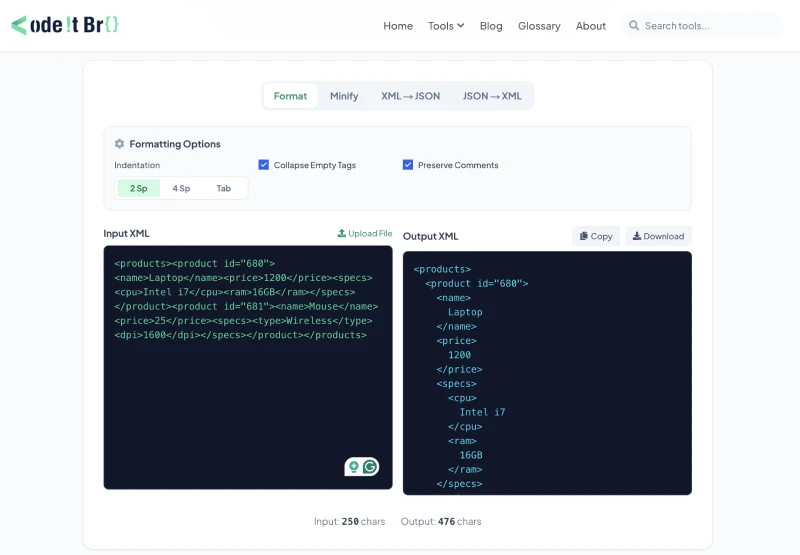
Formatted XML Output:
<products>
  <product id="680">
    <name>Laptop</name>
    <price>1200</price>
    <specs>
      <cpu>Intel i7</cpu>
      <ram>16GB</ram>
    </specs>
  </product>
  <product id="681">
    <name>Mouse</name>
    <price>25</price>
    <specs>
      <type>Wireless</type>
      <dpi>1600</dpi>
    </specs>
  </product>
</products>
The hierarchical structure is obvious, making it easy to navigate, debug, or share with colleagues.
Format XML in Your Editor (Fast, No Context Switching)
Online formatters are great for quick, one-off cleanup. But if you format inside your editor, you keep diffs clean and avoid copy-paste mistakes. You also avoid pasting sensitive data into a website.
VS Code
- Install XML Language Support by Red Hat (built on the LemMinX XML language server).
- Open your XML file.
- Run Format Document from the Command Palette or editor menu.
IntelliJ IDEA (and other JetBrains IDEs)
JetBrains IDEs support XML formatting out of the box. Use the Reformat action and adjust the XML code style settings to change the wrapping or indentation.
- Reformat docs: Reformat and rearrange code
- XML support overview: Working with XML
- XML code style settings: Code Style: XML
Notepad++
If you use Notepad++, the XML Tools plugin adds “Pretty print” (format) and “Linearize” (minify), as well as validation options.
Command line (great for CI and scripts)
xmllint (part of libxml2) formats XML and helps you catch parse errors.
xmllint --format input.xml
cat input.xml | xmllint --format -
xmllint --format input.xml > formatted.xml
XMLStarlet also includes a formatting command (xml fo).
xml fo input.xml > formatted.xml
Choosing Between Online Tools and IDE Plugins
Online formatters are convenient when you need a quick, one-off beautification. They usually run entirely in the browser, so there’s no installation, and some even support large files efficiently.
Online XML formatting tools work on Windows, macOS, Linux, and all major browsers. However, pasting sensitive data into a web tool can be risky.
Although many tools claim to process files locally, you should double-check privacy statements and avoid uploading confidential information.
For daily development work, IDE extensions offer deeper integration. These extensions also support custom indentation settings and often combine formatting with schema validation and linting.
Popular editors, such as VS Code, include extensions that automatically format XML and validate it against schemas. Using an extension reduces context switching, lets you stay in your editor, and ensures consistency across your entire project.
When a Formatter Fails (Common Reasons)
If a formatter refuses to run, treat it as a signal. Most tools format only after they can parse the document.
- The XML is not well-formed: a missing closing tag, an unquoted attribute value, or bad nesting will stop most formatters. The W3C XML 1.0 specification defines what “well-formed” means. w3.org/TR/xml
- Encoding issues: a file saved with the wrong encoding (or mixed encodings) can break parsing.
- Mixed content: whitespace can matter in text-heavy XML (e.g., documents that mix text and inline tags). Formatting may change line breaks, which can affect rendering in some consumers.
If you want a quick sanity check, run xmllint. It will usually tell you where parsing fails. xmllint docs
Best Practices for Working with XML
Formatting is just one part of working effectively with XML. Adopt these habits to keep your XML clean:
- Use consistent indentation: choose 2 or 4 spaces and stick with it. Consistency makes the hierarchy clear and helps catch misplaced tags.
- Break lines sensibly: place opening and closing tags on separate lines, and avoid overly long lines.
- Choose descriptive tag names: tag names should convey meaning and reduce the need for comments.
- Format attributes consistently: decide whether to put attributes on their own lines and apply that style across the document.
- Use self-closing tags: for empty elements, self-closing tags (<br/>) save space and improve clarity.
- Validate against schemas: DTDs or XSDs ensure your XML adheres to defined rules and catch mistakes early.
- Minify for production: once your XML is correct, minify it for transmission to reduce file size and bandwidth consumption.
Beyond Formatting: Validation and Conversion
A formatter helps you see the structure, but it doesn’t guarantee correctness. Tools that include validation will check that your XML is well-formed, meaning tags open and close correctly, and attribute values are quoted. The W3C XML 1.0 specification covers these rules.
Some formatters also validate against XML Schema Definitions (XSD). If you’re dealing with strict standards (for example, SOAP messages or RSS feeds), schema validation matters.
Many formatters also double as converters. CodeItBro’s XML Viewer tool can convert XML to JSON and vice versa. Conversions help when your app needs a different format, but double-check the output because XML and JSON model data differently.
When to Use Minification
Formatting makes XML readable, but it adds unnecessary whitespace for machines. In contexts where bandwidth or storage is limited, such as sending large XML payloads over a network, you may want to minify the document.
XML file minification removes comments and unnecessary whitespace, producing a compact, single-line file.
Also consider compression. Microsoft documentation notes that Office’s newer XML-based formats use ZIP and other compression technologies and can reduce file size by as much as 75 percent compared to older binary formats in some cases.
Keep in mind that minified XML is almost impossible to read. A good workflow is to use formatted XML during development, validate it against your schema, and minify or compress it before deployment.
Limitations and Trade-Offs
Despite its ubiquity, XML has downsides. It’s verbose, tags repeat element names, which increases file size and network latency. This verbosity is why many developers prefer JSON for API payloads.
XML also lacks native array support and can feel cumbersome compared to lightweight formats. However, XML’s self-describing nature and schema validation keep it relevant across domains such as configuration, publishing, and enterprise data interchange.
Practical Tips from Experience
- Work locally when possible: if your XML contains sensitive information such as customer data or API keys, avoid online formatters. Use an IDE plugin or a command-line tool
xmllintinstead. xmllint docs - Automate formatting: configure your editor to format on save. This prevents accidental commits of messy XML and keeps your diffs clean.
- Leverage tree views: for complex documents (e.g., SOAP envelopes with nested headers and bodies), a collapsible tree view helps you locate sections quickly.
- Minify at deployment: run minification during build or deployment pipelines to avoid shipping human-friendly whitespace to production.
By combining formatting with validation and a simple workflow, you’ll spend less time fighting XML and more time shipping.
About Himanshu Tyagi
At CodeItBro, I help professionals, marketers, and aspiring technologists bridge the gap between curiosity and confidence in coding and automation. With a dedication to clarity and impact, my work focuses on turning beginner hesitation into actionable results. From clear tutorials on Python and AI tools to practical insights for working with modern stacks, I publish genuine learning experiences that empower you to deploy real solutions—without getting lost in jargon. Join me as we build a smarter tech-muscle together.