Top 9 VS Code Extensions to 10x Your Productivity

Our guides are based on hands-on testing and verified sources. Each article is reviewed for accuracy and updated regularly to ensure current, reliable information.Read our editorial policy.
Ever feel like your editor is missing something? Here’s the spoiler: these nine extensions turned my sluggish workflow into something I actually enjoy.
They aren’t magic. But each one strips away a daily annoyance so I can focus on what matters. Let’s dive into my real-world take — frustrations and all — on the VS Code tools that actually pay for themselves.
#1 GitLens — Know Who Did What
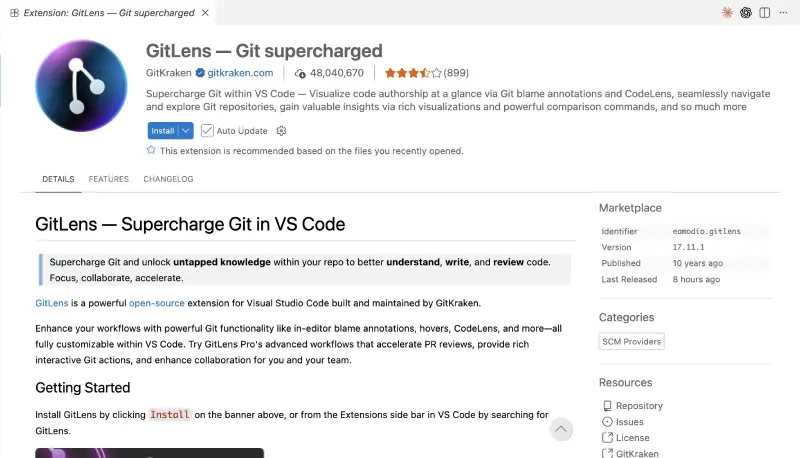
I can’t live without GitLens. It supercharges Git inside VS Code. Now I see who wrote a line, when, and why, without leaving the editor.
The inline blame annotations and CodeLens show the author right at the top — it feels like peering over a teammate’s shoulder.
There’s also a commit graph for revisiting old changes. That said, it can feel heavy with all its panels. I only enable it in large projects.
Here’s what you get:
- Inline blame annotations and hovers for quick history.
- A visual commit graph that lets you rebase, merge, or revert with a click.
- Pull‑request workflows and branch actions in a single home view.
Want context on every line? Try GitLens now. It’s free for core features, with a pro tier if you need AI‑assisted commit messages.
#2 Prettier — Format Without Thinking
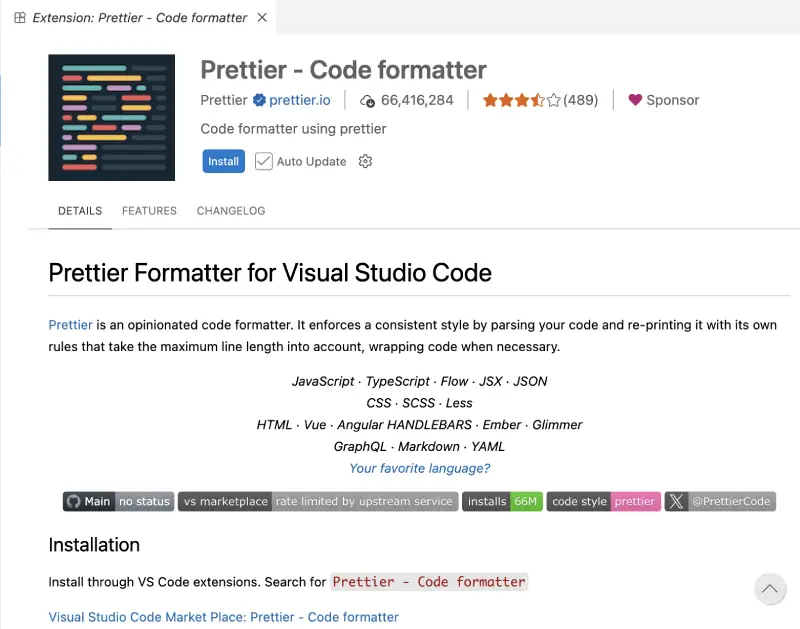
Consistent code style matters. Prettier enforces a unified format across JavaScript, TypeScript, CSS, HTML, and more.
It parses your code and reprints it using opinionated rules. That means no more discussions over tabs versus spaces or semicolons — it just happens on save. You can set it as your default code formatter in VS Code and forget about it.
I love the simplicity. Install it, configure it as the default, and my diffs get smaller. That said, it can fight with other formatters if you have them installed, so set your defaults carefully.
You can pair editor formatting with a quick browser-based cleanup step too. If a JSX file gets messy during refactoring, run it through React Formatter before committing so the structure is easier to scan and review.
Key benefits:
- Reprints code with a consistent style across many languages.
- Runs on save and can be set as the default formatter.
- Bundles Prettier 3.x but respects your project’s local version.
If you hate arguing about code style, just install Prettier. It’s already saved me countless review comments.
Suggested Read: 5 Best VS Code AI Extensions for Smarter Coding
#3 ESLint — Stop Mistakes Early
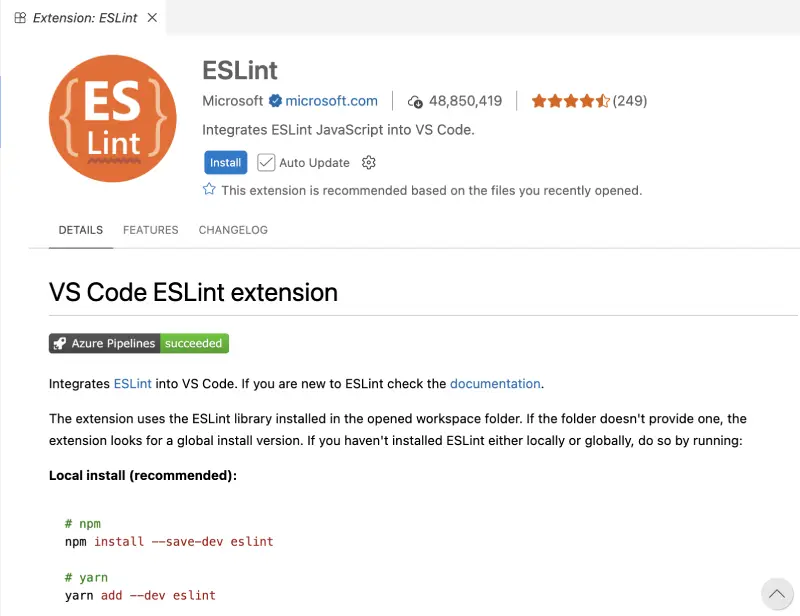
I used to ship silly bugs. ESLint fixes that. The extension integrates the popular linting library into VS Code. It uses the ESLint installed in your workspace or globally.
The result? Instant feedback on syntax errors, unused variables, and code that breaks your team’s rules. If no ESLint is installed, the extension suggests installing it.
The downside: you need to set up configuration files for each project. That said, the time saved catching mistakes in the editor is worth the 10‑minute setup.
Why ESLint matters:
- Integrates ESLint to surface warnings and errors as you code.
- Supports local and global installations with simple install instructions.
- Offers flexible validation settings to lint only the files you care about.
If you want to catch bugs before they hit GitHub, enable ESLint in VS Code. It’s the first extension I add to any new project.
#4 Live Server — Instant Browser Preview
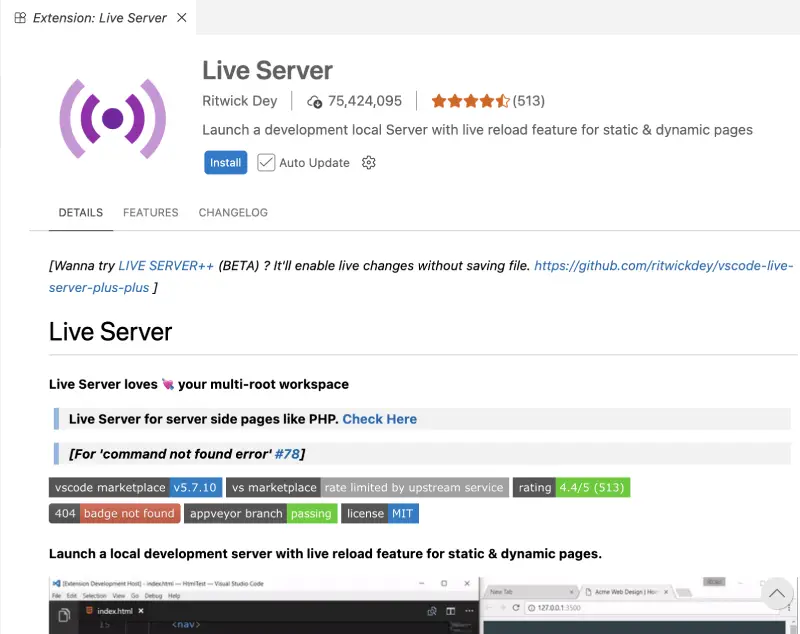
Tired of switching to your browser to refresh? Live Server launches a local server with automatic reloads for static and dynamic pages.
One click on the “Go Live” button and you’re previewing your HTML, CSS, and JavaScript in real time. The live reload feature saves me from constant Ctrl‑R muscle memory.
It’s not perfect — sometimes the port conflicts with other dev servers. That said, the ability to preview without pressing refresh is addictive. It supports dynamic languages like PHP and even allows remote connection via WLAN.
For quick front-end experiments, I also use HTML Viewer & Editor to test snippets outside the project and see the output instantly. It is handy for checking small layout ideas, rough UI blocks, or isolated HTML before I move them into the real codebase.
What it offers:
- A quick development server with live browser reload.
- One‑click start/stop via status bar or context menu.
- Customizable ports, browsers, and exclusion lists.
Give it a try on your next landing page. You’ll never manually refresh again.
#5 Thunder Client — API Testing Without Postman
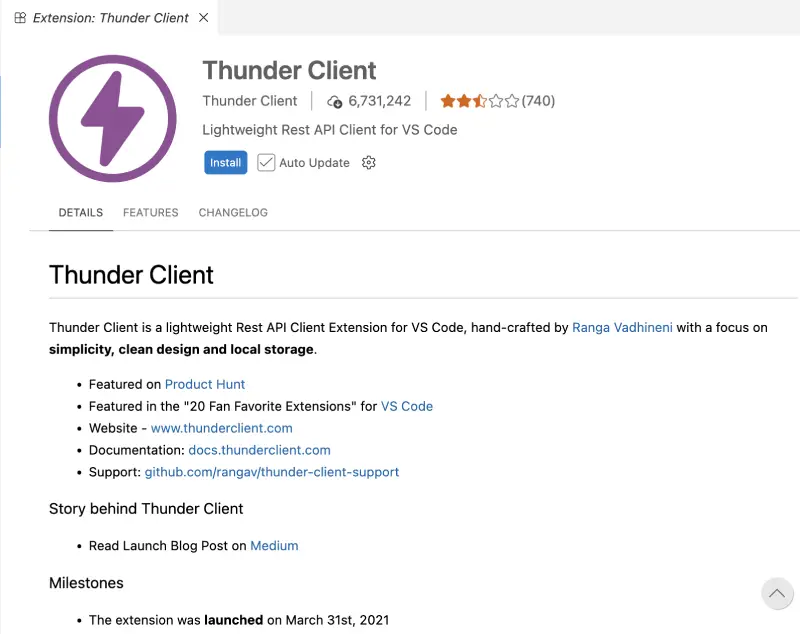
Here’s my favorite secret: I test APIs directly in VS Code. Thunder Client is a lightweight REST API client built with simplicity in mind.
It supports collections, environment variables, and scriptless testing. All data is stored locally, and you can sync requests with Git for team collaboration.
I love that it’s focused. There’s no heavy UI like Postman. That said, it lacks some advanced features like automated test suites. For everyday GET and POST requests, it’s perfect.
When an API response changes and something feels off, I often compare old and new payloads in JSON Compare. It makes it easier to spot structural changes, missing keys, or unexpected value shifts without having to scan raw JSON line by line.
Why use Thunder Client:
- Lightweight API client with clean design and local storage.
- Supports collections, environment variables, and scriptless testing.
- Includes CLI for CI/CD and Git sync for sharing requests.
If you work with APIs, skip the browser tab and open Thunder Client. It feels like VS Code always had this.
#6 Tailwind CSS IntelliSense — Smarter Utility Classes
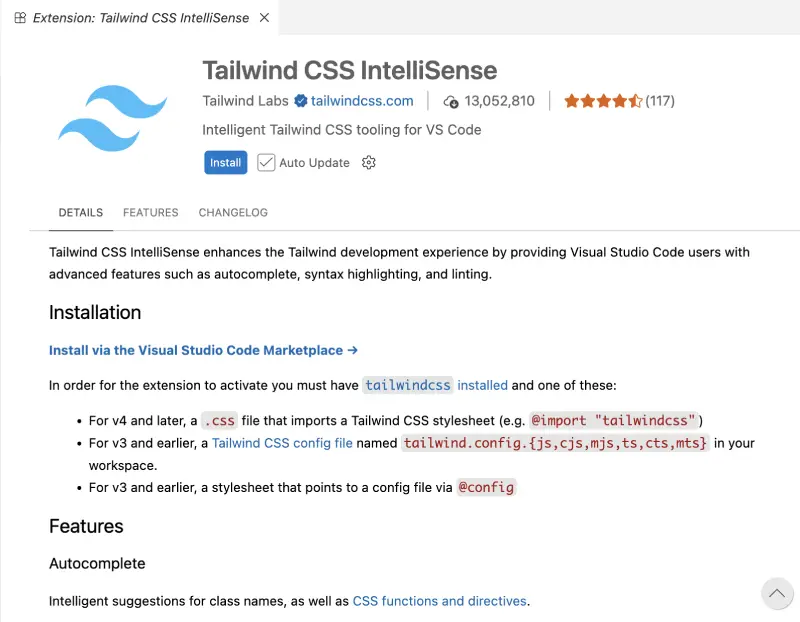
Working with Tailwind CSS? The official IntelliSense extension enhances the experience with intelligent autocomplete, linting, hover previews, and syntax highlighting.
It suggests utility classes and shows full CSS definitions on hover. The linting catches typos in both your CSS and markup.
As a Tailwind fan, this extension is a lifesaver. That said, it can slow down very large files. I often disable it temporarily when editing raw HTML templates. It also supports class sorting via a Prettier plugin, which keeps your classes organized.
Highlights:
- Autocomplete for utility classes and CSS functions.
- Linting for errors and potential conflicts.
- Hover previews and proper syntax highlighting.
If you write Tailwind, this extension will save you from memorizing class names. Just start typing and let IntelliSense do the work.
Also Read: 10 Best Vibe Coding Tools Every Developer Should Try
#7 Error Lens — Don’t Miss Warnings
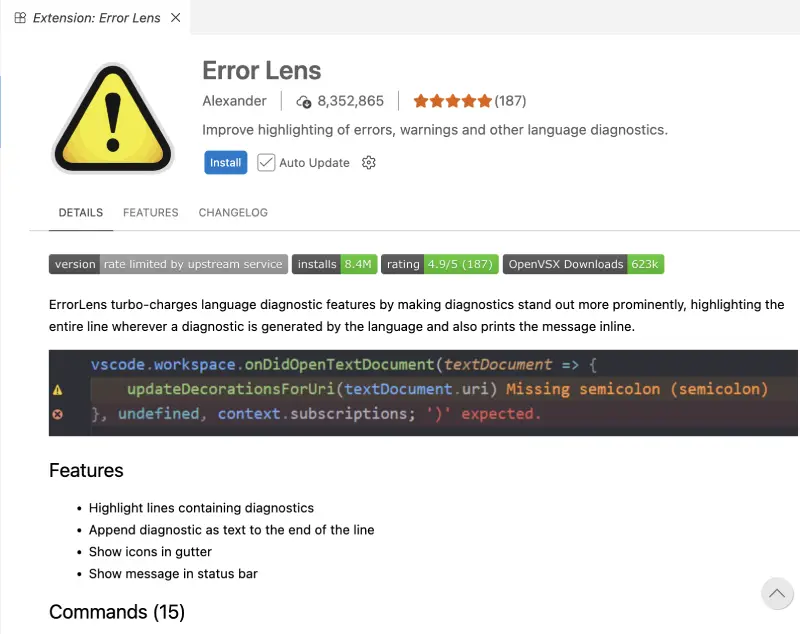
VS Code’s default error underlines are subtle. Error Lens makes them impossible to miss by highlighting the entire line and showing the message inline.
Icons in the gutter and status bar draw your eye. It even appends the diagnostic text right at the end of the line.
At first it felt loud, almost obnoxious — but that’s the point. I catch warnings faster and fix them on the spot. That said, I sometimes toggle it off when demoing code to clients. A simple command lets you toggle errors, warnings, or info messages individually.
Feature list:
- Highlights entire lines with diagnostics and prints messages inline.
- Shows icons in the gutter and status bar.
- Toggle commands for different severity levels.
If you’ve ever missed a red squiggle, install Error Lens. You’ll wonder how you lived without it.
#8 TODO Tree — Never Lose a Note Again
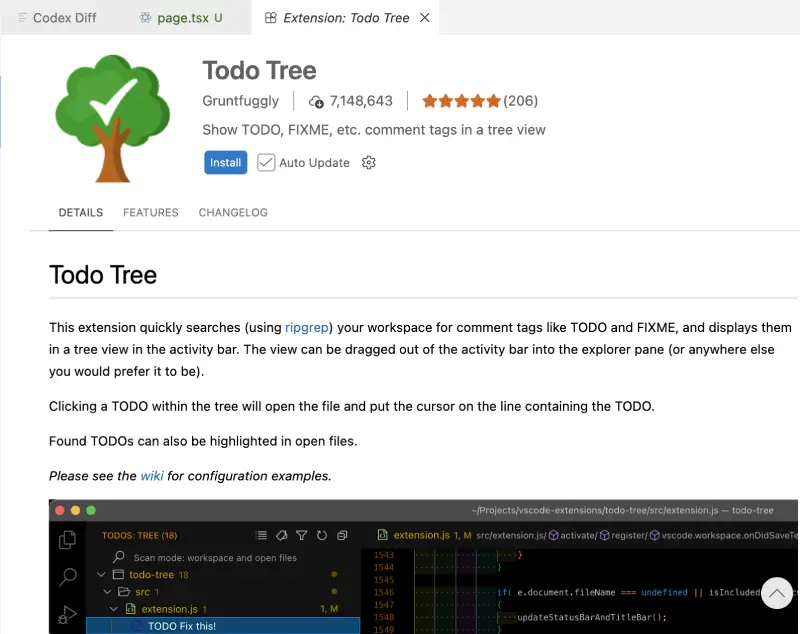
My code is littered with TODO and FIXME comments. The Todo Tree extension scans the workspace for comment tags and displays them in a tree view. Clicking an item jumps straight to the line. It also highlights TODOs in the editor.
It’s simple yet powerful. That said, it can clutter the activity bar if you let tags accumulate. I regularly complete TODOs to keep them useful.
Why it helps:
- Finds comment tags like TODO and FIXME via ripgrep and shows them in a tree.
- Clicking a result opens the file and focuses on the line.
- Highlights found TODOs directly in open files.
If you jot notes in comments, let TODO Tree organize them. It’s like a built‑in task list.
#9 Markdown All in One — Write Docs with Ease

Documentation matters, but VS Code’s built‑in Markdown support is basic. Markdown All in One enhances editing with shortcuts for bold, italic, and strikethrough.
It continues lists automatically and adapts indentation. It even builds a table of contents and updates it on save.
I appreciate the extra touches: printing to HTML, LaTeX math support, and link shortcuts. That said, the command palette becomes crowded with Markdown commands. I customized my keybindings to keep things tidy.
I also like keeping a browser tab open with Markdown Formatter for cleaning up rough notes, messy tables, or copied Markdown before publishing. It is especially useful when a README or draft starts breaking because of inconsistent spacing.
Key features:
- Basic editing commands and automatic list continuation.
- Table of contents creation and automatic updates.
- Export to HTML and LaTeX math rendering with KaTeX.
If you write release notes, README files, or blog posts in VS Code, this extension turns Markdown from a chore into a delight.
Final Thoughts
Productivity isn’t about flashy plugins. It’s about removing tiny frictions so you can stay in flow. These nine extensions did that for me. They handle version control, code style, linting, previews, API calls, CSS classes, errors, tasks, docs, and collaboration. I’ve tried dozens, and these are the ones that stuck.
Which one will you try first? You already know my favorites. Install a couple now and see how they change your day. Then share your own must‑have extension. I’m always hunting for the next simple upgrade.
If you want more small workflow wins beyond VS Code extensions, browse the Development Tools section on CodeItBro. It includes browser-based formatters, JSON utilities, HTML helpers, and other quick tools that remove the same kind of day-to-day friction this list is all about.
About Himanshu Tyagi
At CodeItBro, I help professionals, marketers, and aspiring technologists bridge the gap between curiosity and confidence in coding and automation. With a dedication to clarity and impact, my work focuses on turning beginner hesitation into actionable results. From clear tutorials on Python and AI tools to practical insights for working with modern stacks, I publish genuine learning experiences that empower you to deploy real solutions—without getting lost in jargon. Join me as we build a smarter tech-muscle together.