Twitch Audio Only Desktop: How to Listen to Streams in the Background

Our guides are based on hands-on testing and verified sources. Each article is reviewed for accuracy and updated regularly to ensure current, reliable information.Read our editorial policy.
In this tutorial, you will learn how to listen to Twitch audio-only in the background. If you want to stream audio-only on Twitch, you will find this tutorial handy.
By following the steps explained in this tutorial, you can quickly turn on the radio mode of Twitch and stream audio in the background. The best part is that you will be able to play Twitch videos and live streams in
We will use a free Chrome extension named Twitch Radio Mode to stream Twitch audio in the background.
After enabling this Chrome extension, a small radio icon will be added to the Twitch video player.
All you have to do is click that little radio icon to turn on audio-only mode on Twitch. Keep reading this tutorial for detailed steps.
Also Read: How To Flip An Image in Chrome [Rotate An Image In Chrome]
How To Listen To Twitch Audio-Only In The Background
“Radio Mode” is a feature only available in the mobile app version of Twitch. This mode allows users to stream the audio only. Thus, saving critical device resources such as RAM, network bandwidth, and device battery.
Let’s now see the steps to enable radio mode in Twitch on your desktop.
Install Twitch Radio Mode using the link provided below. Once done, open Twitch and play any video or live stream. You should notice a little radio button on the Twitch player, as shown below.
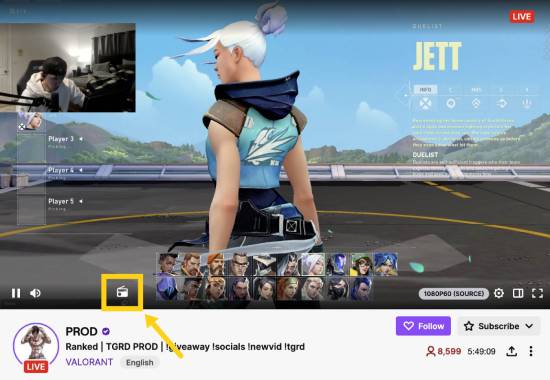
Click on the little radio button, and the Chrome extension will start playing the video in audio-only mode, as shown below.

The video will automatically pause, but the audio will keep playing in the background. To view the video, click the radio icon again.
You can continue using the other player controls, such as adjusting volume levels, changing audio quality, enabling theatre mode, or playing audio/video in full-screen mode.
Wrapping Up
In this tutorial, we shared a simple method for listening to Twitch audio in the background. After installing Twitch Radio Mode, you can stream Twitch in audio mode – similar to radio mode in the Twitch mobile app.
The best part is that it can help you save network bandwidth, RAM, and other critical device resources. Download the Chrome extension using the link below and enjoy Twitch in audio-only or radio mode on your desktop.
Get Twitch Radio Mode here.
Other how-to tutorials:
About Himanshu Tyagi
At CodeItBro, I help professionals, marketers, and aspiring technologists bridge the gap between curiosity and confidence in coding and automation. With a dedication to clarity and impact, my work focuses on turning beginner hesitation into actionable results. From clear tutorials on Python and AI tools to practical insights for working with modern stacks, I publish genuine learning experiences that empower you to deploy real solutions—without getting lost in jargon. Join me as we build a smarter tech-muscle together.