Chrome Rotate Image: How to Flip or Rotate Images in Chrome Easily

Our guides are based on hands-on testing and verified sources. Each article is reviewed for accuracy and updated regularly to ensure current, reliable information.Read our editorial policy.
In this tutorial, we will explain how to rotate an image in Chrome. Using the method in this tutorial, you can rotate an image in the Chrome browser either to the right or left.
We will use two Chrome extensions to flip an image in Chrome: Image Rotate Context and Enhanced Image Viewer.
Please note that the image is not permanently rotated. If you refresh the webpage, the browser restores the original image.
The best part is that one of these Chrome extensions adds the option to rotate or flip an image in the context menu of the Chrome browser.
Thus, offers you much-needed accessibility to flip or rotate an image on a webpage. One Chrome extension also supports keyboard shortcuts to flip an image vertically or horizontally.
Also Read: 5 Best Font Changer Chrome Extension Picks
How To Flip An Image in Chrome Using the Image Rotate Context Extension
Let’s now see the steps to flip or rotate an image in Chrome using this Chrome extension:
Use the link below to the Chrome Web Store and install the Image Rotate Context Chrome extension.
When you install this Chrome extension, you can rotate an image from the context menu.
To flip an image, right-click on any image and then, from the context menu, select the Right or Left option from the Rotate submenu, as shown below.
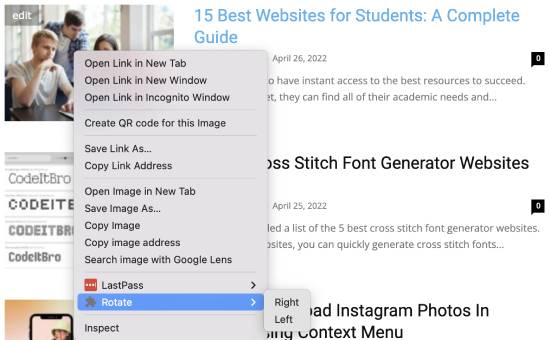
Whether you want to flip an image horizontally or vertically, you must perform the above step multiple times.

I have flipped the above image vertically using the Image Rotate Context image extension.
This is the simplest method to flip an image in Chrome. You will have the option to rotate a photo right in the context menu of Chrome.
Get the Image Rotate Context extension.
Also Read: 12 Best Free Download Manager Chrome Extensions
How to Flip an Image in Chrome Using the Enhanced Image Viewer Extension
Now, let’s see how to use the Enhanced Image Viewer Chrome extension to flip an image.
Install the Chrome extension using the link provided below. As soon as you install this Chrome extension, you will see the Enhanced Image Viewer options, as shown below.
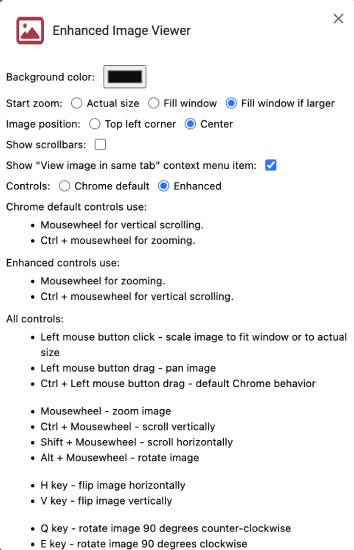
To flip an image using this Chrome extension, you must first view an image in Chrome. The best part is that it supports keyboard shortcuts to flip an image vertically or horizontally.
Right-click on any image you want to flip and select the View image in the current tab option.
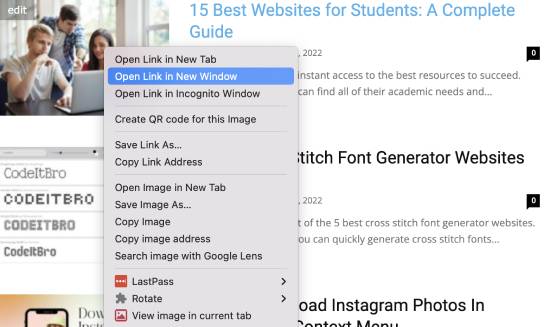
The extension will then open the image in the current tab. Now, you can flip the image using the following keyboard shortcuts:
- H – Flip the image horizontally
- V – Flip the image vertically
Here is the same image flipped vertically using the Chrome Extension.

Get the Enhanced Image Viewer extension.
Conclusion
In this tutorial, we shared two simple methods to flip an image in Chrome. To rotate an image in Chrome, we can use either of the extensions mentioned in this tutorial.
If you want a more accessible option, we recommend using Image Rotate Context. However, try the Enhanced Image Viewer Chrome extension for a stable and more accurate solution.
You’ll also like:
About Himanshu Tyagi
At CodeItBro, I help professionals, marketers, and aspiring technologists bridge the gap between curiosity and confidence in coding and automation. With a dedication to clarity and impact, my work focuses on turning beginner hesitation into actionable results. From clear tutorials on Python and AI tools to practical insights for working with modern stacks, I publish genuine learning experiences that empower you to deploy real solutions—without getting lost in jargon. Join me as we build a smarter tech-muscle together.