Compare Multiple AI Video Directions Without Paying for Every High-Quality Render

Our guides are based on hands-on testing and verified sources. Each article is reviewed for accuracy and updated regularly to ensure current, reliable information.Read our editorial policy.
Every creative project starts with a question: which version is best? A bold close-up, a playful wide shot, or a calm slow-motion take could all work. Paying for every one in 1080p is how budgets quietly vanish.
Dreamina’s Seedance 2.5 Draft mode lets you compare creative directions using lower-cost 480p video previews before generating a native 1080p final from your preferred take.
This approach can help content creators, marketers, and video production teams experiment with different ideas without paying full-resolution generation costs for every attempt.
The Hidden Cost of “Let’s Try One More”
Creative teams rarely nail it on the first attempt. Each extra try seems small, but direct 1080p renders pile up quickly.
When testing is expensive, people tend to play it safe. Drafts make it more affordable to experiment with different compositions, camera movements, and character performances before committing to a final render.
Meet Dreamina’s Seedance 2.5 Draft Mode
Draft mode is a preview-first workflow within Seedance 2.5. You generate 480p drafts, pick a favorite, and create a fresh native 1080p final from it.
The final generation reuses the draft’s prompt, references, seed, aspect ratio, and duration. This helps preserve the selected creative direction, although the finished video may differ in lighting, textures, motion, and other details.
Highlights:
- Lower preview costs: A 480p draft costs approximately 82% less than a direct 1080p generation in the published pricing example.
- Separate billing: Draft and final video generations are charged independently.
- Reused creative settings: The final generation uses the selected draft’s creative parameters.
- More experimentation: Compare more creative directions within the same production budget.
The documented Draft mode workflow uses the BytePlus ModelArk API. Dreamina’s web workspace has separate credit pricing, and availability of the Draft feature may differ from the API.
How to Compare Creative Directions in Three Steps
Here is how to compare different video ideas using Seedance 2.5 Draft mode.
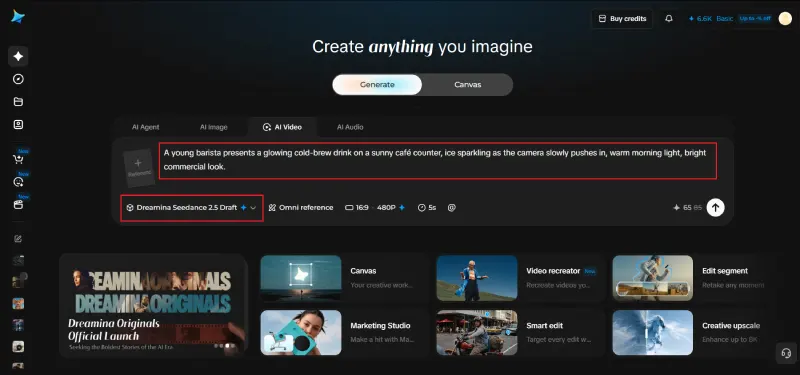
Step 1: Create a 480p Draft
Start a draft request with your scene description and any supported image, video, or audio references.
If you are using reference images, an image size checker can help you confirm their dimensions and aspect ratios before preparing your request.
Example video prompt:
A young barista presents a glowing cold-brew drink on a sunny café counter, ice sparkling as the camera slowly pushes in, warm morning light, bright commercial look.
Select an aspect ratio that suits your intended platform, such as 16:9 for YouTube or 9:16 for social media Reels. Choose your video duration, enable Draft mode, and set the resolution to 480p.
Submit the generation request and wait for the draft to finish before reviewing the video.
Step 2: Compare Takes and Choose the Shot
Watch for composition, character performance, camera movement, dialogue, audio, and pacing.
Refine the prompt or references and create additional drafts when you want to test a different creative direction, such as a wide shot, a close-up, or a slow-motion take.
Choose the successful take that best matches your original creative brief. If you are using the API, retain its task ID for the final generation.
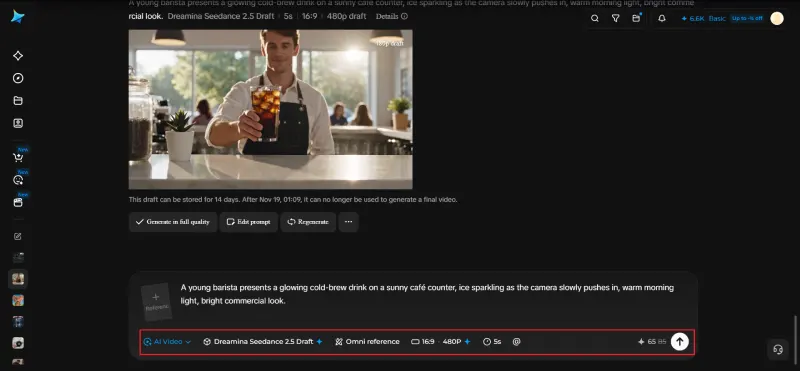
Step 3: Generate and Review the Final Video
Create a final-generation task using the same model and the selected draft’s task ID. The model automatically reuses the draft’s creative settings, so you do not need to resend those inputs.
Select 1080p as the final resolution. The ModelArk API also supports 4K final generation from drafts, although the pricing examples in this article are based on 1080p output.
When the generation is complete, download and review the newly generated video for continuity, lighting, motion, and detail before delivery.
Do the Math: Why Drafts Save So Much
According to Dreamina’s published API pricing example dated October 28, 2026, a five-second, 16:9 video without input video costs approximately $0.514 in Draft mode and $2.843 for a native 1080p generation.
Both stages are billed separately. Actual API charges depend on token usage, and these modeled prices exclude taxes, discounts, packages, and currency effects.
| Creative Directions | Direct 1080p Generation | Drafts + One Final | Estimated Savings |
|---|---|---|---|
| 5 | $14.215 | $5.413 | 61.9% |
| 11 | $31.273 | $8.497 | 72.8% |
| 20 | $56.860 | $13.123 | 76.9% |
Eleven drafts plus one final cost approximately $8.497 in this example, roughly 73% less than eleven direct 1080p renders. At 20 attempts, the estimated savings increase to approximately 77%.
These savings assume that you generate only one full-resolution final after reviewing the drafts. If you only need one video, creating a draft followed by a final may cost more than generating directly in 1080p.
Setting Up a Fair Comparison
A good comparison changes one idea at a time. If you change the camera, lighting, and character all at once, you will not know what made the difference.
For example, you could use the following image prompt to prepare a consistent visual reference for the coffee advertisement.
Cheerful cinematic close-up of cold-brew coffee being poured over sparkling ice in a sunlit café, a barista’s smiling face softly blurred in the background, warm morning glow, shallow depth of field, 16:9, photorealistic.
Try labeling your video drafts by their creative direction:
- Direction A: A static wide shot showing the café environment.
- Direction B: A slow camera push-in emphasizing the cold-brew drink.
- Direction C: A close-up tracking shot following the pouring action.
Keep the subject, lighting, duration, and reference assets consistent while testing different camera directions. Once you have selected a preferred camera movement, you can experiment with other elements, such as lighting or pacing.
What to Score When You Review
Give each take a quick score on the things that matter. A simple scale from one to five is enough.
- Composition: Is the main subject clearly visible?
- Performance: Do the character’s movements and actions look natural?
- Camera movement: Does the camera follow the intended direction?
- Audio: Does the sound match the action and setting?
- Pacing: Does the scene move at the right speed?
The winner is not always the prettiest draft. It is the one that best matches your shot intent.
Remember that a 480p preview may not reveal every issue with small text, product labels, facial details, or fine textures. Check these elements carefully in the final video.
Making Client and Team Reviews Easier
Stakeholders often find it easier to choose between real video previews than imagined ones. Share your labeled drafts and ask for feedback on the creative direction.
If your downloaded previews are too large to share over email, use an MP4 compressor to create smaller review copies while keeping the original files.
For mood boards or visual comparisons where audio is not important, a video to GIF converter can help you create short animated previews.
Collect feedback before generating the final video. This can help reduce unnecessary full-resolution renders when clients request changes to the composition or camera movement.
Keep Your API Task IDs Organized
If you are using Seedance 2.5 through the ModelArk API, each draft returns a task ID. The selected draft’s ID is required to generate the final video.
Keep a simple note listing each ID alongside its creative direction and generation date.
Draft task IDs created from October 28, 2026, at 10:00 AM (UTC+8) onward remain valid for 14 days. IDs created before that cutoff remain valid for seven days.
Make sure you generate your final video before the selected draft ID expires.
Reviewing the Final Before Delivery
Once the 1080p final is ready, review continuity, lighting, and detail. Because the final is newly generated rather than upscaled, it can differ from the original draft.
Before delivering the video, check the following:
- Character appearance and movement remain consistent.
- Product details and visual references match the creative brief.
- Camera movement follows the approved direction.
- Dialogue and audio are synchronized, where applicable.
- The video meets the required resolution, duration, and aspect ratio.
A short final review can prevent unnecessary rework and help catch visual issues that were difficult to identify in the 480p preview.
Conclusion: Explore Boldly, Pay Wisely
Comparing creative directions does not have to mean paying for every 1080p render. With Dreamina’s Seedance 2.5 Draft mode, you can test multiple ideas in 480p, select the strongest take, and generate a full-resolution final.
The approach is particularly useful when a project requires several creative experiments or rounds of client feedback. By resolving creative decisions before committing to a final render, you can keep AI video generation costs under control without limiting the ideas you explore.
About Himanshu Tyagi
At CodeItBro, I help professionals, marketers, and aspiring technologists bridge the gap between curiosity and confidence in coding and automation. With a dedication to clarity and impact, my work focuses on turning beginner hesitation into actionable results. From clear tutorials on Python and AI tools to practical insights for working with modern stacks, I publish genuine learning experiences that empower you to deploy real solutions—without getting lost in jargon. Join me as we build a smarter tech-muscle together.
Comments
Comments are provided by Disqus, which sets cookies and processes data under its own privacy policy.