How to Get Lyrics on YouTube Music (Desktop Guide)

Our guides are based on hands-on testing and verified sources. Each article is reviewed for accuracy and updated regularly to ensure current, reliable information.Read our editorial policy.
This tutorial will guide you through the process of getting lyrics on YouTube Music. By following the simple steps in this tutorial, you will get the lyrics of songs you play on YouTube Music.
To display the lyrics of a song on YouTube Music, we will use a free Chrome extension named Lyrics (YouTube /YouTube Music).
The best part is that you can also use this Chrome extension to get song lyrics on YouTube. Numerous online platforms are available for listening to music, including Spotify and Apple Music.
Both of these music services enable users to view song lyrics. Access to a song’s lyrics makes it easier for users to sing along. However, this key feature is missing on YouTube Music.
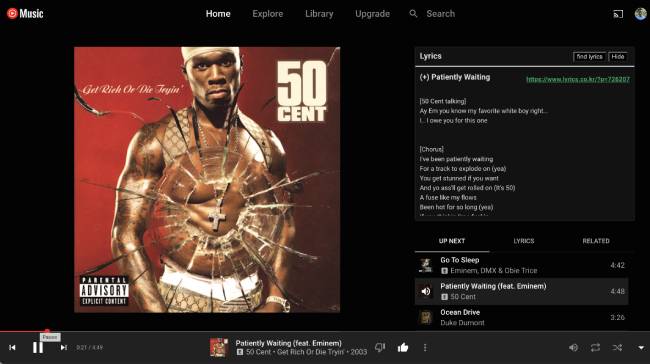
While you can use other music services that offer built-in functionality of displaying lyrics of songs, YouTube Music holds leverage over other platforms because of the vast content available on YouTube, which might not be available on different platforms.
Additionally, some songs may only be available on YouTube.
Also Read: How To Find YouTube Videos By Length [Solved]
How to Get Song Lyrics On YouTube Music
Step 1: Install the Lyrics Chrome extension using the link at the end of this tutorial.
Step 2: After installing this Chrome extension, open YouTube Music and play any song. You will see a Lyrics pane on top of the playlists, as shown in the screenshot below.
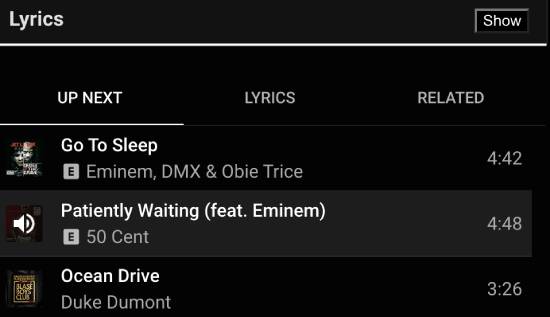
Step 3: Click the Show button to see the song’s lyrics, as shown in the screenshot below.
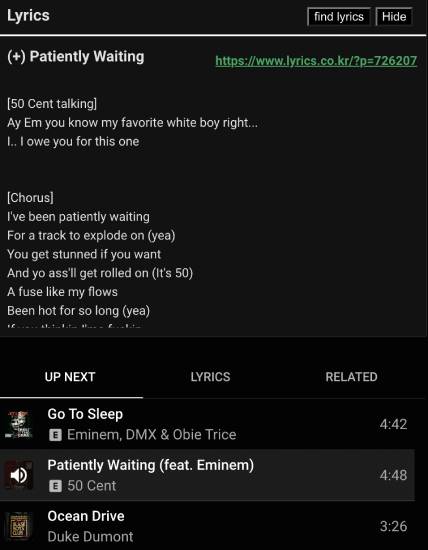
You can use the search functionality to find the correct lyrics if the lyrics are incorrect. Click the Find lyrics button to open a search bar on the interface.
Type the song name and hit the search. After that, choose the song whose lyrics you want to see.
The Chrome extension did an excellent job displaying the correct lyrics during my testing. However, in very few cases, the displayed lyrics were incorrect, and I had to use the search functionality to get the right ones.
Congrats, you can now access the lyrics of all your favorite songs on YouTube Music. The best part is that this Chrome extension also works with YouTube.
It adds the same lyrics pane on YouTube whenever you play a music video. Follow the same steps mentioned above to get the lyrics of songs on YouTube.
Also Read: YouTube Double Tap: How to Change Skip Time Easily
Conclusion
We shared how to get song lyrics on YouTube Music in this tutorial. Lyrics is a free Chrome extension that makes it easier for users to access song lyrics directly on the YouTube Music interface.
The best part is that it also works for YouTube. The only limitation is that the lyrics don’t highlight the currently spoken words in the song.
Get the Lyrics Chrome extension.
You’ll Also Like:
About Himanshu Tyagi
At CodeItBro, I help professionals, marketers, and aspiring technologists bridge the gap between curiosity and confidence in coding and automation. With a dedication to clarity and impact, my work focuses on turning beginner hesitation into actionable results. From clear tutorials on Python and AI tools to practical insights for working with modern stacks, I publish genuine learning experiences that empower you to deploy real solutions—without getting lost in jargon. Join me as we build a smarter tech-muscle together.