YouTube Double Tap: How to Change Skip Time Easily

Our guides are based on hands-on testing and verified sources. Each article is reviewed for accuracy and updated regularly to ensure current, reliable information.Read our editorial policy.
By default, YouTube skips 10 seconds when you double-tap on videos on your smartphone. This tutorial teaches you how to change the YouTube double-tap skip time.
Following the steps in this tutorial, you can change the skip time on the YouTube mobile app to 5, 15, 30, or 60 seconds.
This tutorial will be helpful if you want to skim faster or slower than the default skip time.
The best part about this method is that when you change skip time on your smartphone, YouTube automatically uses the same updated skip time on the desktop.
Let’s say you change the YouTube double-tap skip time to 5 seconds. If you use the arrow keys to skip forward on your desktop, any YouTube video will skip 5 seconds.
Also Read: How To Find YouTube Videos By Length [Solved]
How to Change YouTube Double-Tap Skip Time
The official YouTube app lets you skip through videos by double-tapping on the left or right part of the player. To skip forward, double-tap on the right part of the video. To skip backward, double-tap on the video’s left part.
As mentioned above, YouTube skips 10 seconds by default. Let’s see how to change your smartphone’s YouTube double-tap skip time. Please note that the steps are similar for the Android and iOS versions of the YouTube app.
Install the YouTube app from the Google Play Store or App Store and log in to your account. Then, open the app and tap on your account profile picture, as shown below.

On the next screen, you will see various options. To proceed, tap on the Settings option.
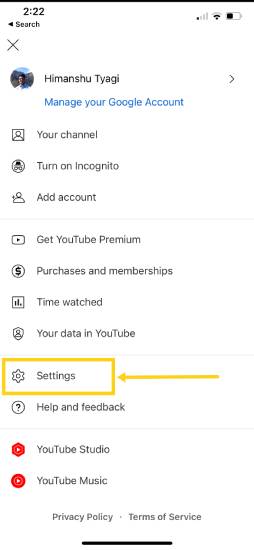
Now, tap on the General option to move to the next step.
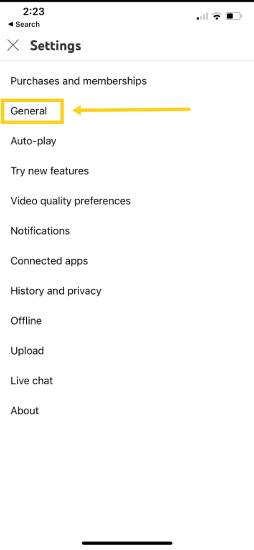
After tapping on the General option, you will get many options related to general settings, such as dark mode, break interval reminder, and many others, on the next screen.
Select the Skip forward and back option on this app screen below.
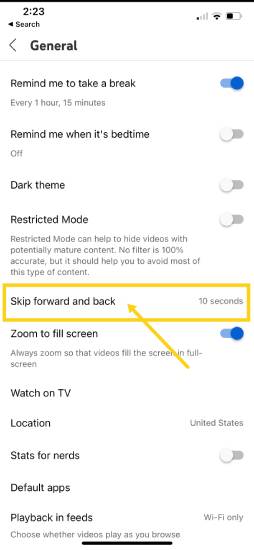
In this final step, you must select a time to change the YouTube double-tap skip time.
For example, if you want to skip 30 seconds after double-tapping on any YouTube video, tap on the 30-second button, as shown below.
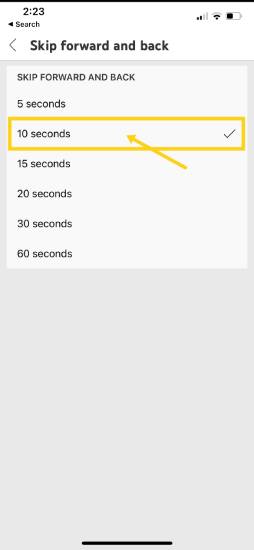
After choosing the updated time, you can start viewing any YouTube video. If you double-tap to skip forward or backward, YouTube will use the updated time, as shown below.

Congrats! You have now successfully updated the YouTube double-tap skip time.
Suggested Read: How to Get Song Lyrics on YouTube Music
Wrapping Up
This tutorial shared a simple method to change the double-tap skip time on YouTube. Following these simple steps, you can change the skip time to 5, 15, 20, 30, or 60 seconds.
This tutorial will be helpful if you want to update, skip forward, and back in time on the YouTube app.
About Himanshu Tyagi
At CodeItBro, I help professionals, marketers, and aspiring technologists bridge the gap between curiosity and confidence in coding and automation. With a dedication to clarity and impact, my work focuses on turning beginner hesitation into actionable results. From clear tutorials on Python and AI tools to practical insights for working with modern stacks, I publish genuine learning experiences that empower you to deploy real solutions—without getting lost in jargon. Join me as we build a smarter tech-muscle together.