How to Reset Windows 10 Start Menu to Default (No System Reset)

Our guides are based on hands-on testing and verified sources. Each article is reviewed for accuracy and updated regularly to ensure current, reliable information.Read our editorial policy.
This tutorial will teach a simple and easy trick to reset the Windows 10 start menu to default. The best part of this method is that you don’t have to do any system reset.
Thus, you can return to the old and default style of the Windows 10 start menu without any headaches or significant hassles.
The Windows 10 start menu is an essential aspect of the Windows 10 experience. Like any other program, it can malfunction and cause problems like a non-responding start menu, stuck Windows tiles, an inaccessible right-click menu for live tiles, etc. It is necessary to reset the Windows 10 start menu in those situations.
The Windows 10 start menu lets users quickly access their favorite programs and apps. Plus, moving tiles show additional information without accessing apps, such as the current temperature in the apps, task reset information in game tiles, etc.
Also Read: 20 Best Free Soundboard Software For Windows and Android [Updated]
Reset Windows 10 Start Menu to Default Without Reinstalling Windows
All these intelligent and essential features of the Windows 10 start menu make it one of Windows’s most essential and frequently used features. If the start menu doesn’t work as intended, it causes a lot of inconvenience to users. If your system’s start menu is also not working correctly, you should try to reset it.
To reset the Windows 10 start menu, you can find some third-party apps and software. However, you can reset the Windows 10 start menu without using a third-party program.
Users should know that they will send it to its default by resetting the start menu, which means all the user-defined shortcuts will be removed.
I have mentioned the steps below to reset the Windows 10 start menu to help you.
Step 1: Go to Windows 10 search, write regedit, and hit enter to launch the Registry Editor.
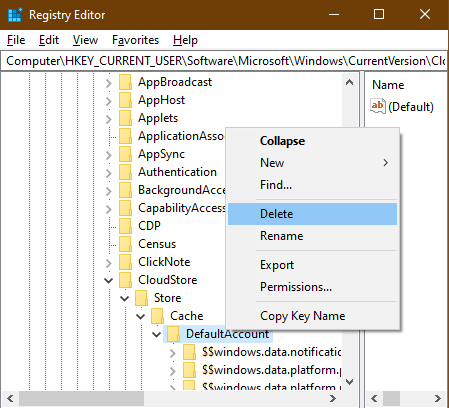
Step 2: After that, go to HKEY_CURRENT_USER\Software\Microsoft\Windows\CurrentVersion\CloudStore\Store\Cache\DefaultAccount.
Step 3: Right-click on the DefaultAccount and choose the Delete option, as shown in the screenshot below.
Restart your system to complete the Windows 10 Start Menu resetting process.
Also Read: 5 Best Drive Icon Changer Software for Windows 10
Conclusion
After following the tutorial steps, you will restore the default state of the Start menu of Windows 10.
If the Windows 10 start menu disables you from accessing the tiles menus or moving tiles, resizing tiles, etc., you should reset the start menu.
The best part of this method is that you don’t have to rely on any third-party app or software. By editing Windows Registries, you can restore the old state of your Start menu.
However, the only downside is that you will have to resize your tiles and add shortcuts again that you have added before.
You’ll also like:
About Himanshu Tyagi
At CodeItBro, I help professionals, marketers, and aspiring technologists bridge the gap between curiosity and confidence in coding and automation. With a dedication to clarity and impact, my work focuses on turning beginner hesitation into actionable results. From clear tutorials on Python and AI tools to practical insights for working with modern stacks, I publish genuine learning experiences that empower you to deploy real solutions—without getting lost in jargon. Join me as we build a smarter tech-muscle together.